Trying out a new IDE
.js.jsx.ts.tsx.html.css.scss.json.vue.md
- Zed
- VS Code
- WebStorm
 Can Opener
Selecting how files open is now easy on the Mac. Pick individually or update 20 in bulk. Set up profiles for quick switching. Use rules for automation. Or ask each time? Can Opener can open files the way you want them.
macOS · Perpetual licence, 12 month updates · Not a subscription

Too many files, too many variations.
Toggle a whole family of file types to one application, in a single go. Perfect to trial new software or switch depending on tasks.
Main features.
File types are easy to find using categories and search. Pick, select the app to use — done.

Need to change multiple types? All images, all office files, all source files? Pick a category and click select all.

Recently Apple made it a bit inconvenient for third party apps to change how files open: you get a prompt to keep or change the settings, every single time. This is a solid security feature, but it can feel a bit repetitive after a while. We came up with a solution: Router Mode. Assign a file type once, see one last prompt for that type. Done.
Profiles allow toggling different setups with 1 click.
100% tweakable.
Profiles are always just a click away in the status menu.

When you're juggling multiple apps. Edit this Markdown in Zed? Or read it in Typora? Have a quick glance at the PDF in Preview? Or fill it in Acrobat? Edit the track in Audacity or listen to it in VLC?
With Ask Every Time you pick the app when the file is opened: blazing fast, keyboard driven chooser that pops up only for selected file types. Works nicely with profiles, naturally. Easy on & off.

Need a bit of automation? Set up rules so that files in certain locations always open in the designated app. Personal photos go to Preview; the images in the client's folder pop up in the image editor. Preview downloaded SVGs in Firefox; open your design files in Sketch.

Router Mode.
Recently Apple made it a bit inconvenient for third party apps to change how files open: you get a prompt to keep or change the settings. This is a solid security feature, but it can feel a bit repetitive.
Enter Router Mode: enable it and assign a file type to Can Opener once. You then see the last prompt for that type. Maximum flexibility is back.
Nothing is changed automatically by installing Can Opener or by enabling Router Mode. You stay in 100% control.

Extra features.
Profiles, apps and Router Mode at a glance.
Can Opener offers a clear and complete overview of file associations. Organised in categories and enriched with extra information. Spot aliases, managed and router types.

Press ⌘P anywhere in Can Opener and start typing. Matching apps and file types appear as you type.

The defaults are solid but feel free to customise the categories as you wish: add, remove, rename. As it makes sense to you.

By default the Mac opens HTTP links and HTML source files in the same app, Safari or Chrome for instance. Now you can separate these: pick a browser for links you click in emails, but open an editor for HTML files.

Adjust all URL scheme handlers through a simple UI, add them to custom groups or profiles.

Switch the sidebar to Apps and pick one: everything VLC opens, file types and links, sorted by category. Change one, or tick them all and move them to another app in one go.
Home lists your last few changes. Changed your mind? Undo puts every file type back to the app it opened in before.

Can Opener is translated into 10 languages, and follows whichever one your Mac is set to.
No nonsense inside. Fast & native SwiftUI.
Security.
On macOS 26 and later the Mac prompts, by default, each time you edit a file association using Can Opener. This is a security feature to avoid unexpected changes.
So when you start using Can Opener you will see prompts, asking if you want to use the new app or keep the old one.
When you make explicit changes, we think these prompts are a bit unnecessary, so we built Router Mode. Once enabled, each change you make assigns the file type to Can Opener, and you're prompted one last time — never again.
Router Mode doesn't leave a back door open either. Every route, web link setting and undo snapshot Can Opener saves is cryptographically signed with a key that never leaves your Mac's keychain. If another program changes any of them, the signature no longer matches, and Can Opener ignores the change until you've approved it.
How do we secure the path from our code to your Mac?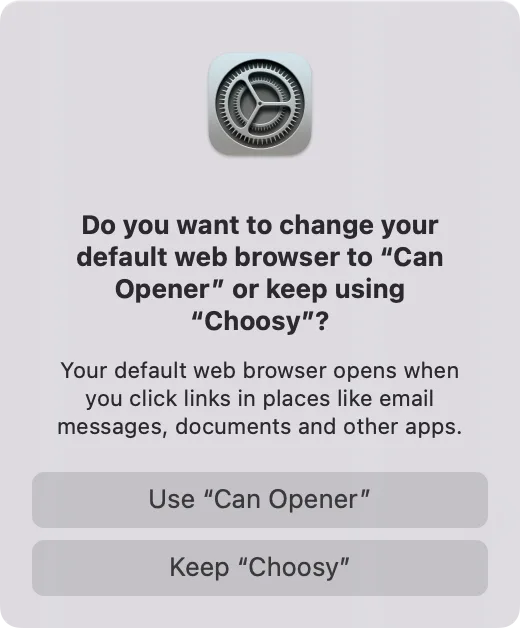
Our answer is this: yes, it is completely safe to assign Can Opener to all files. We never actually access or open your files! We simply pass the request to the application that opens it. What's more, we never log or gather any information about the individual files.
Note that we do use Sentry.io for crash analytics and will receive reports that contain the error message - but nothing about you. We use these to fix code issues and to provide a more stable experience.
Can Opener keeps a few settings files on your Mac: where each routed file type goes, your web link rules, your Ask Every Time choices and your undo history. Any program on your Mac could edit these files, so we protect them.
The first time Can Opener starts, it creates a secret key and keeps it in your Mac's keychain. Whenever Can Opener saves one of these files, it signs it with that key. Another program can't read the key without macOS asking you first, so it can't make a valid signature.
Each time Can Opener reads its settings, it checks the signatures and ignores anything changed by another program. A changed route isn't used, and the next file of that type asks you which app to open it with. Changed web link or Ask Every Time settings are set aside, and Can Opener asks whether you want them. A changed undo step is never offered.
This works the same whether Router Mode is on or off. With Router Mode on, more of your choices live in these files rather than with macOS, so there the protection matters most.
No, we don't think so — the dispatch is very fast and you won't even notice it.
Each file type that was assigned to Can Opener, either in Ask Every Time or Router Mode, will lose its association. Next time you try to open it Finder will either ask how it should be handled, or use the next fallback. Usually opening a related app will re-claim the file. We also offer an Uninstall button in settings, that can guide you through this process.
No. Can Opener works without it — you will just see the macOS 26+ prompt for each change you make in Can Opener. Router Mode is there for people who change associations often.
Some applications are known to take over certain files when you launch them. For example, some Markdown editors will grab all .md files on the first launch. Router Mode is meant to solve this. Beyond that we decided not to fight other applications and to let them do it — otherwise we'd do more harm than good and just make things more unpredictable. If other apps bother you in some way, please contact their developers.
Changelog.
A refreshed look on macOS 26: a floating glass sidebar, a toolbar with the page's own actions, and glass bars and panels. macOS 15 keeps its familiar look.
⌘P now lists matching profiles as well as apps and file types.
An "Ask every time" list in a profile can now have path rules, and applying the profile sets them up.
On macOS 26 and later, macOS asks you to confirm every time an app changes which app opens a file type. The first time you open Can Opener there, it now explains why that happens and how Router Mode stops the repeated prompts.
Press ⌘P anywhere in Can Opener, or click Jump on Home, and start typing. Matching apps and file types appear as you type.
Can Opener for macOS
One-time purchase · 7-day free trial
This is a perpetual licence including updates for 12 months.
Your receipt and your licence key arrive by email.
Full refund within 14 days, no questions asked. See the full terms.
Nothing is changed automatically by installing Can Opener or by enabling Router Mode. You stay in 100% control.