 Spot On
Think of the app.
It's there.
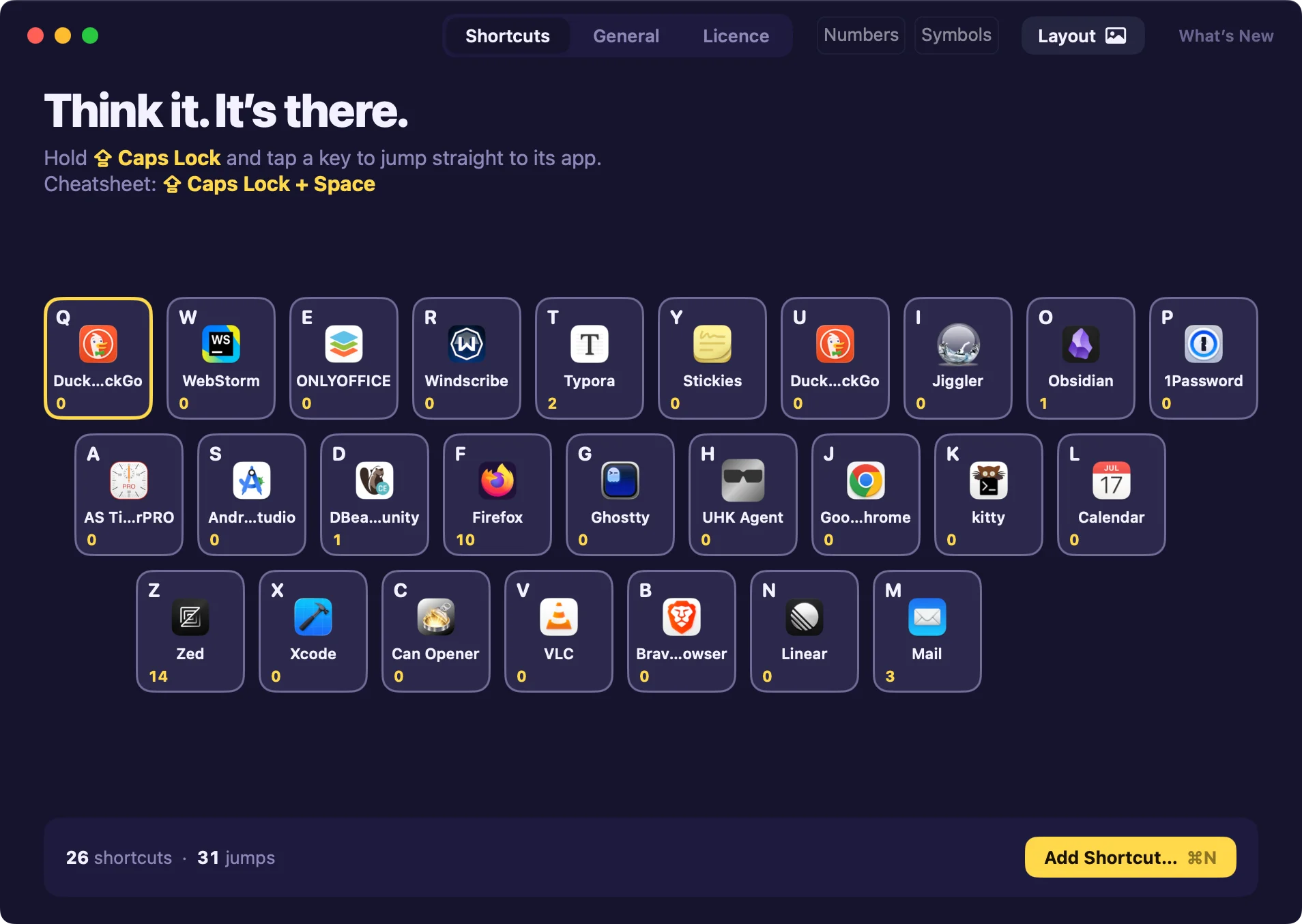
Hold Caps Lock, tap a letter, and the app is focused. No search box, no app switcher, no hunting through icons. This is the most direct way to get to an app.
A launcher without the search
Spot On is the direct path from thought to window.
⌘-Tab makes you read a row of icons and count. The mouse makes you reach, aim and click. Other launchers make you type, wait, read and pick. They all ask you to find the app, instead of giving you the app.
With Spot On, your most important apps live on one key and stay there. Caps Lock and M is Mail today, tomorrow and next year. You build muscle memory in no time.
One key, three jobs
Each app gets one key, and that key always does the right thing. You never stop to think whether the app is open, hidden behind another window or already in front. You press the key.
-
Mail isn't running
It launches
Spot On opens it for you. No Dock, no Finder.
-
Mail is open somewhere
It comes to the front
Behind other windows or on another desktop, it is focused straight away.
-
Mail is already in front
Its next window comes up
Tap again to go round all of Mail's windows on this desktop, or on every desktop if you like.
Launcher, app switcher and window switcher, all on the same key. One thing to learn per app, and it works every time.
A permanent key for each app
Spot On comes from years of trying every switcher, launcher and shortcut scheme on the Mac. Everything unnecessary was taken away. No results list, no ranking, no recent-app order. A dedicated key for each app.
Your fingers remember
William James described the ideomotor effect: merely thinking of an action tends to set it off. That is what Spot On feels like after a week. You think "Mail", and Mail is already in front of you. You don't remember pressing anything.
Once you learn the keys, going back to ⌘-tabbing or the mouse feels sluggish.
The 0.8-second jump to any app
We timed it. Not a lab study, though we built an in-house app for it: a repeated drill that names an app and stops the clock when that app is in front. Each app was reached first with ⌘-Tab, then with Spot On. The typical jump went from 1.67 s to 0.79 s.
Median time from seeing an app's name to having it activated and focused.
The app you haven't touched all week is as quick to reach as the one you just left. Spot On doesn't depend on recency, position, search results or which desktop the app is on. F is Firefox wherever Firefox happens to be.
It's liberating.
Your keyboard is the menu
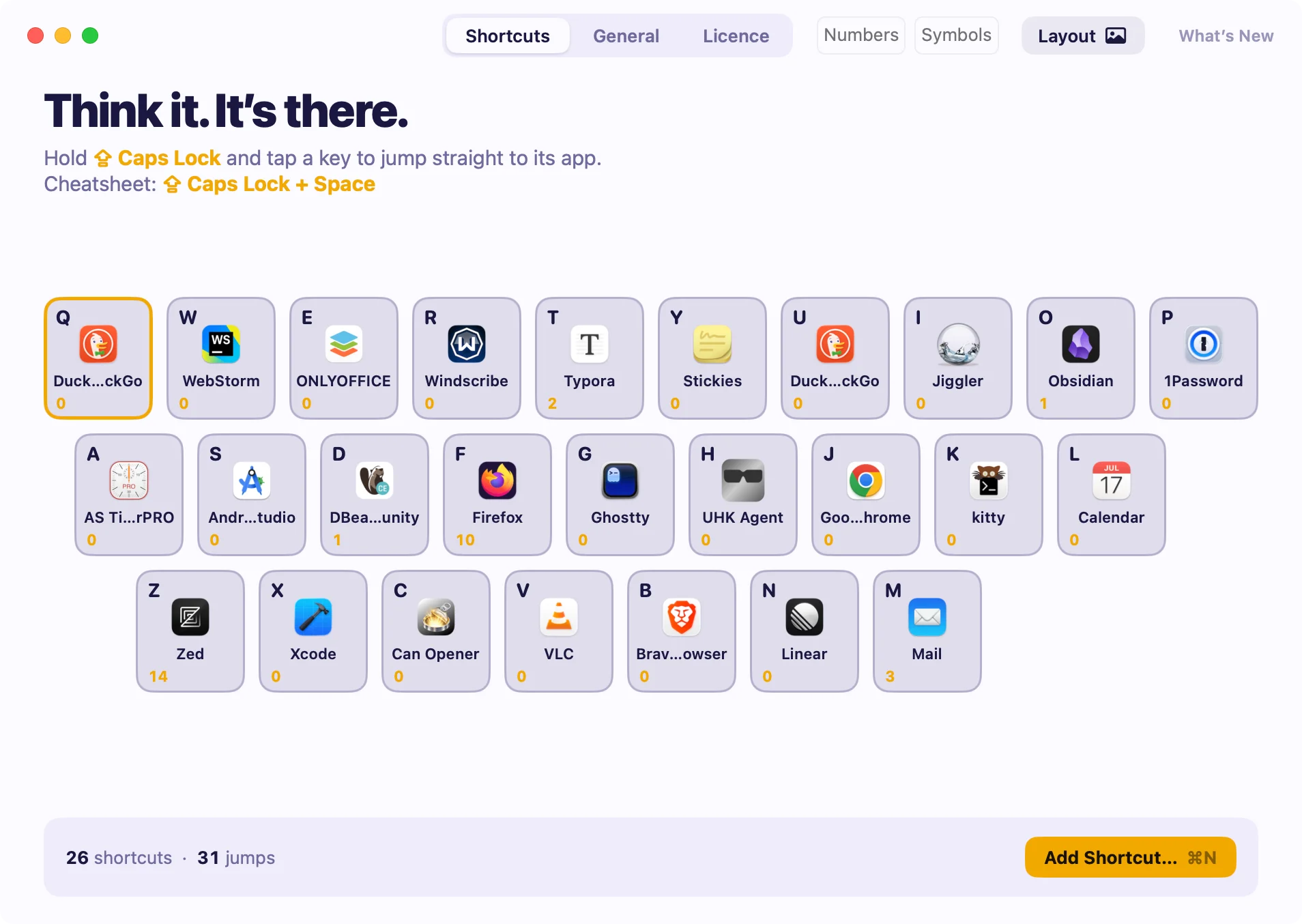
One permanent place for every app you use. 40+ slots, including letters, numbers and symbols.

What it does
-
Any app, any key
Letters, numbers, symbols. One key per app.
-
Cheat sheet
Caps Lock and Space shows a quick peek at your setup.
-
Easy on the hands
One key under your little finger and one letter. No ⌘⌥⌃ stretches, and less reaching for the mouse.
-
Sync between Macs
Keep the same keys on every Mac through iCloud Drive, Dropbox or any synced folder.
-
Quickstart, built in
Pick five apps on first launch. Each gets a letter straight away. You can adjust anything, of course.
-
Plays well with Hyper
Caps Lock with any other key still sends ⌘⌥⌃⇧, so your existing Hyper shortcuts keep working.
-
Escape, if you like
Tap Caps Lock on its own to send Escape. Off by default.
-
No account
Paste your licence key once. No sign-up and no password to remember.
-
Fast and native
Built in SwiftUI, not Electron. It starts instantly and barely touches your battery.
For power users, and future ones
Every workflow has its handful of apps you switch between all day. Give each one a key and go straight to the window you need, the same way every time.
Free for 7 days. $9.99 once.
The purchase is yours for ever, with every update to this major version. No subscription.
Also from us: Can Opener and Pose.